WhatsApp is strict about animated stickers. Its official requirements leave very little room:
| Rule | Limit |
|---|---|
| Canvas | Exactly 512 × 512 pixels |
| File size | 500 KB at most |
| Length | 10 seconds at most |
| Each frame | Shown for at least 8 ms |
| Tray icon | A still 96 × 96 image, 50 KB at most |
| Pack | 3 to 30 stickers |
Many guides online quote these limits wrongly, as 1 MB or 100 KB, so it's worth checking the source above. The hard part is file size. A sticker is a few seconds of video, and you can't know how big the file will be until you've encoded it.
When I built stickers for GifDrop, the obvious approach was to try settings until something fit. That doesn't work well on a phone: encoding every frame is slow, and each failed attempt is thrown away while someone waits. It also took three versions to get right, which I cover further down.
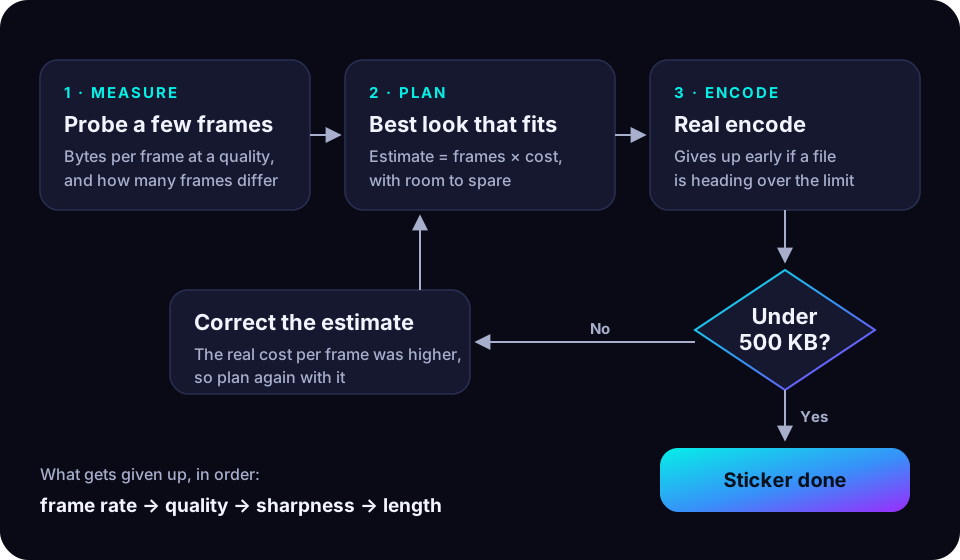
So GifDrop estimates first, then verifies. A few sample frames predict the size, and a real encode has the final say. Here's the whole loop:
Aim slightly below the limit
Don't aim for the exact limits. Leave a little headroom:
- Size: WhatsApp's validator rejects animated stickers above
500 * 1024bytes. Aiming a little under 500,000 bytes keeps you safe whether "KB" means 1000 or 1024 bytes. - Length: WhatsApp allows 10 seconds in total. Frame durations get rounded, so aim a little under that too.
Predicting the size
The estimate needs two things.
How much one frame costs. GifDrop takes a few frames from different parts of the clip and compresses them at the quality being considered. Their average is the cost of a frame. These measurements are real encoding work, so each one is only made when the plan needs it, and then remembered.
How many frames are really different. GIFs often repeat frames, and a repeated frame costs almost nothing, because the previous frame is just shown for longer. So GifDrop compares each frame's pixels with the one before, and counts the ones that changed.
Together, those give a simple estimate:
estimated size = file overhead + (different frames × cost of one frame)A few sample frames can't predict everything, so a candidate only counts as fitting if its estimate leaves some room under the budget.
What gets given up, and in what order
A clip that fits keeps everything: its full length, its source frame rate and the best quality. When a clip doesn't fit, GifDrop gives things up one at a time, in the order people are least likely to notice:
- Frame rate, but never below a rate that still looks smooth at sticker size.
- Quality, down to a floor. Below that, stickers start to look blocky.
- Sharpness. A very light blur hides the dithering noise that GIFs have, which costs a lot of bytes and is barely visible at this size.
- Length, as a last resort. The end of the clip is cut, and the start is always kept.
There's one more check on frame rate. Some GIFs repeat frames, so sampling them faster only repeats and skips frames, which makes motion uneven for the same file size. A higher frame rate is only worth it if it brings clearly more different frames.
Don't guess the final length
Cutting the length has a neat shortcut. It would be tempting to calculate how many seconds will fit, encode that, and check. If the guess were off, that would either waste budget or need another attempt.
Instead, GifDrop picks the lowest look it accepts and simply keeps adding frames until the next one wouldn't fit. That uses the whole budget, and needs only one real encode:
for each frame:
    if adding this frame would go over the budget:
        stop here, and the clip ends before this frame
    otherwise, add it
The real encode has the final say
An estimate is only an estimate, so a candidate is always checked by encoding it for real. Two things keep failures cheap.
Giving up early. If a file is clearly heading over the limit, there's no point finishing it. After the first few frames, the size so far is projected to the whole clip, and a candidate that's clearly too big is dropped. That first check is generous, because the first few frames may not be typical. Later on, more has been seen, so the check gets stricter.
Learning from a miss. When a real encode comes out too big, GifDrop compares its real cost per frame with what the sample frames promised, and remembers the difference. Every later estimate is scaled up by it, so the next plan is more realistic. It only ever grows, which stops the plan from going back to an option that has already proved too optimistic.
Real results from five stickers
To see how this works in practice, I made five stickers from different clips and recorded GifDrop's own log for each one. The phone was a Redmi Note 13 Pro (MediaTek MT6789) on Android 16, running a debug build of GifDrop 1.0.9.
| Clip | Length | Detail level | Result | Size | Time |
|---|---|---|---|---|---|
| 1 | 6.0 s | Very high | Cut to 4.3 s | 494,410 bytes | 3.5 s |
| 2 | 7.9 s | High | Cut to 6.0 s | 491,070 bytes | 5.0 s |
| 3 | 6.0 s | Medium | Whole clip, sharp | 450,112 bytes | 3.9 s |
| 4 | 8.0 s | High | Cut to 5.6 s | 495,752 bytes | 6.2 s |
| 5 | 7.9 s | Low | Whole clip, sharp, smoother frame rate | 395,240 bytes | 8.2 s |
"Detail level" compares how many bytes one frame of each clip cost, measured at the same setting for every clip.
A few things stand out.
The content matters more than the length. Clips 1 and 3 are both 6 seconds long, but one frame of clip 1 cost about 2.4 times as much as one frame of clip 3. So clip 1 had to lose almost 2 seconds, while clip 3 kept every frame, sharp, at a higher quality.
Every sticker fitted on its first real encode. The correction step never had to run. For the two clips kept whole, the real size came within 1.2% and 0.1% of the estimate. The three cut clips used between 98.2% and 99.2% of the budget, because frames keep being added until the next one won't fit.
Only the measurements the plan needs get made. For clips 1, 2 and 4, even the lowest look couldn't fit the whole clip. So GifDrop measured a single setting and went straight to cutting the length. Clips 3 and 5 needed five or six measurements, to find the best quality that fits.
A higher frame rate isn't always better. For clip 5, the highest frame rate only produced repeated frames, with no more different frames than the lowest one. A frame rate in between gave every frame a new picture, so that one won.
It takes seconds, not minutes. Each sticker took between 3.5 and 8.2 seconds from start to finish. These times come from a debug build, so the Play Store version may be a little faster.
Five clips is a small sample, so take these as a picture of how the approach behaves, not a benchmark.
Why WhatsApp rejects a pack
If you're building stickers yourself, these are the rules from WhatsApp's requirements that are easiest to break:
- The canvas isn't exactly 512 × 512. Smaller or non-square images are rejected, so letterbox or crop the clip first.
- The file is just over 500 KB. Remember the 1000 vs 1024 difference, and aim slightly under.
- The animation is longer than 10 seconds, once all frame durations are added up.
- A frame is shown for less than 8 ms. This can happen when a high frame rate is converted carelessly.
- The tray icon is animated, or larger than 96 × 96 or 50 KB. It must be a still image.
- The pack has fewer than 3 stickers. WhatsApp needs at least 3, and allows up to 30.
See it in action
This is GifDrop turning a clip into a GIF, and then into a sticker:
Three versions to get here
The approach above wasn't the first one. GifDrop's sticker encoder went through three versions in under a week, and each change was measured on real GifDrop GIFs.
- A fixed list of lengths. The first version tried the whole clip first, then a few set shorter lengths. It worked, but it cut clips more than it needed to.
- Giving things up in order. The second version introduced the order described above: frame rate, then quality, then sharpness, and length only as a last resort. It also stopped encoding repeated frames twice. On 8-second GIFs, it kept about 4.3 to 4.5 seconds of each clip, up from 2.4 to 3.2 seconds before.
- Filling the budget instead of guessing. The second version still guessed how long a cut clip could be. In device tests, that guess left 14% of the budget unused on one GIF, and needed a second encode on two of three GIFs. The third version fills the budget frame by frame instead, which is what the results above show: every sticker fitted on the first try, using 98% or more of the budget when cut.
The lesson is the same one each time. A smarter plan helped, but measuring the real file and letting it decide helped more.
Key takeaways
- WhatsApp animated stickers must be exactly 512 × 512, 500 KB at most and 10 seconds at most. Check the official requirements, because many guides get these wrong.
- Aim slightly under each limit, so rounding and the 1000 vs 1024 difference can't push a sticker over.
- Estimate before encoding: a few sample frames predict the cost of one frame, and repeated frames cost almost nothing.
- When a clip doesn't fit, give things up in the order people notice least: frame rate, then quality, then sharpness, and length last.
- Let a real encode have the final say, stop early when a file is clearly too big, and learn from every miss.
Next: How animated WebP works, and how to write one in Kotlin, on building the sticker file itself, byte by byte.